> ## Documentation Index
> Fetch the complete documentation index at: https://docs.insecureweb.com/llms.txt
> Use this file to discover all available pages before exploring further.
# How to import the UTMStack instance into the Federation Service
> This section provides a step-by-step guide on how to import a UTMStack instance into the Federation Service.
By following these instructions, you’ll be able to integrate your UTMStack instance, enabling centralized management and enhanced security monitoring across federated environments. This process ensures seamless communication and data sharing between UTMStack and the Federation Service.
### Step 1: Log in to your UTMStack Federation Service instance
Once the installation is complete, you can access your UTMStack Federation Service instance using the **credentials provided during the installation process**.
### Step 2: Go to the **Integrations** menu and click on **+ Enable Integration**
 ### Step 3: Enable a UTMStack Integration - Add Tenant

 ### Step 4: Check the Module Configuration
 Once you have entered the **Domain or IP** and the **Connection Key**, click on the **Check** icon to verify the module configuration.
If the connection is successful, a confirmation window will appear showing the UTMStack logo and a green check mark. Click **Continue** to proceed.
This step ensures that your Federation Service can successfully communicate with the connected UTMStack instance.
### Dashboard Preview – Threat Activity
Once you have entered the **Domain or IP** and the **Connection Key**, click on the **Check** icon to verify the module configuration.
If the connection is successful, a confirmation window will appear showing the UTMStack logo and a green check mark. Click **Continue** to proceed.
This step ensures that your Federation Service can successfully communicate with the connected UTMStack instance.
### Dashboard Preview – Threat Activity
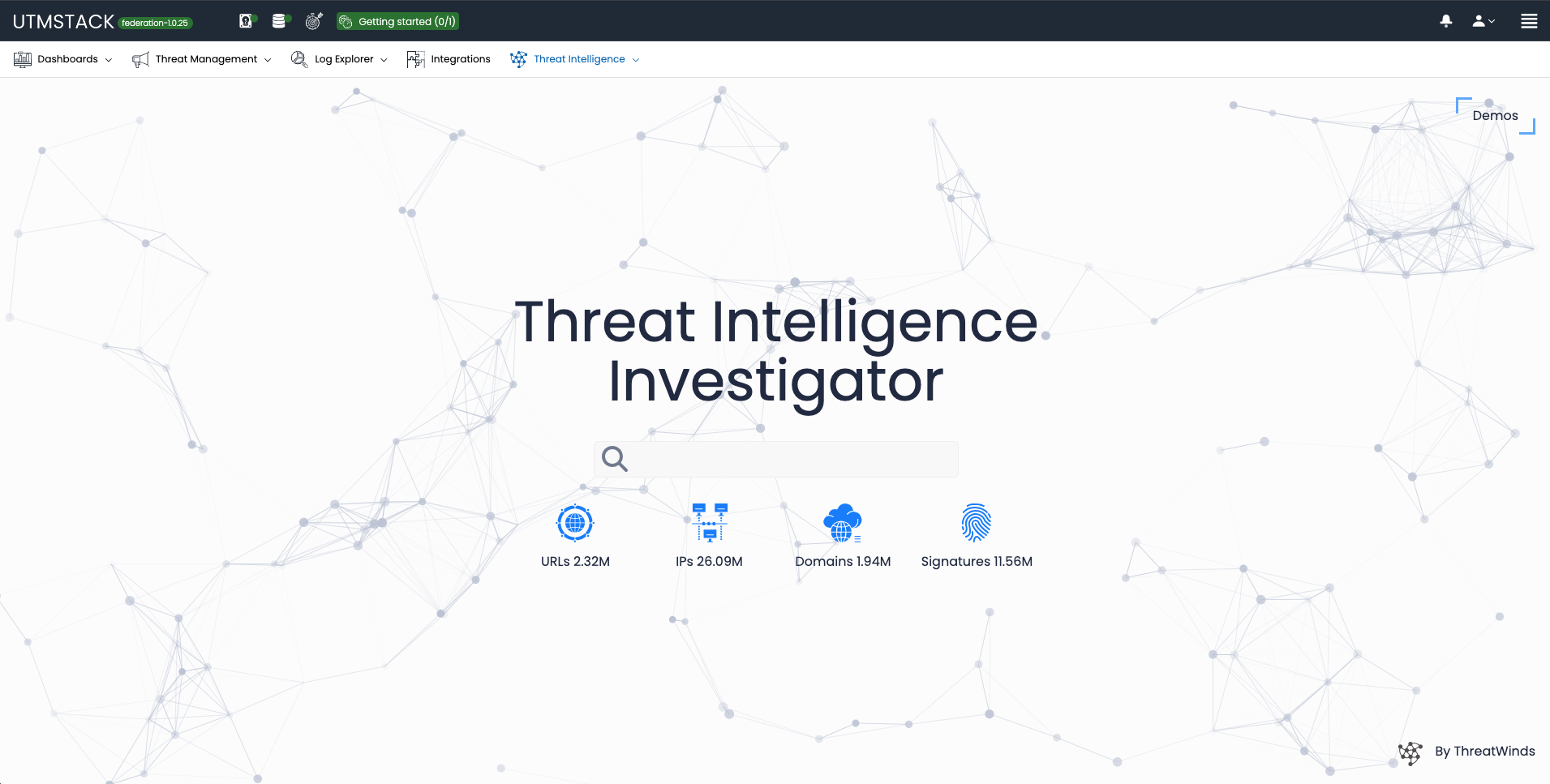
 ### Threat Intelligence Investigator