> ## Documentation Index
> Fetch the complete documentation index at: https://docs.insecureweb.com/llms.txt
> Use this file to discover all available pages before exploring further.
# Integration guide for Google Cloud Platform
> Google Cloud Platform is a suite of public cloud computing services offered by Google. The platform includes a range of hosted services for compute, storage and application development that run on Google hardware
#### 1. Google Pub/Sub
> Go to the [Pub/Sub](https://console.cloud.google.com/projectselector2/cloudpubsub/topic/list?_ga=2.26902461.1097687309.1633079255-1671403559.1629178517\&supportedpurview=project) topics page in the Cloud Console
#### 2. Click on "Create a topic" button.
#### 3. In the Topic ID field, provide a unique topic name and save.
#### 4. Display the menu for the topic you just created, and click on "Create subscription".
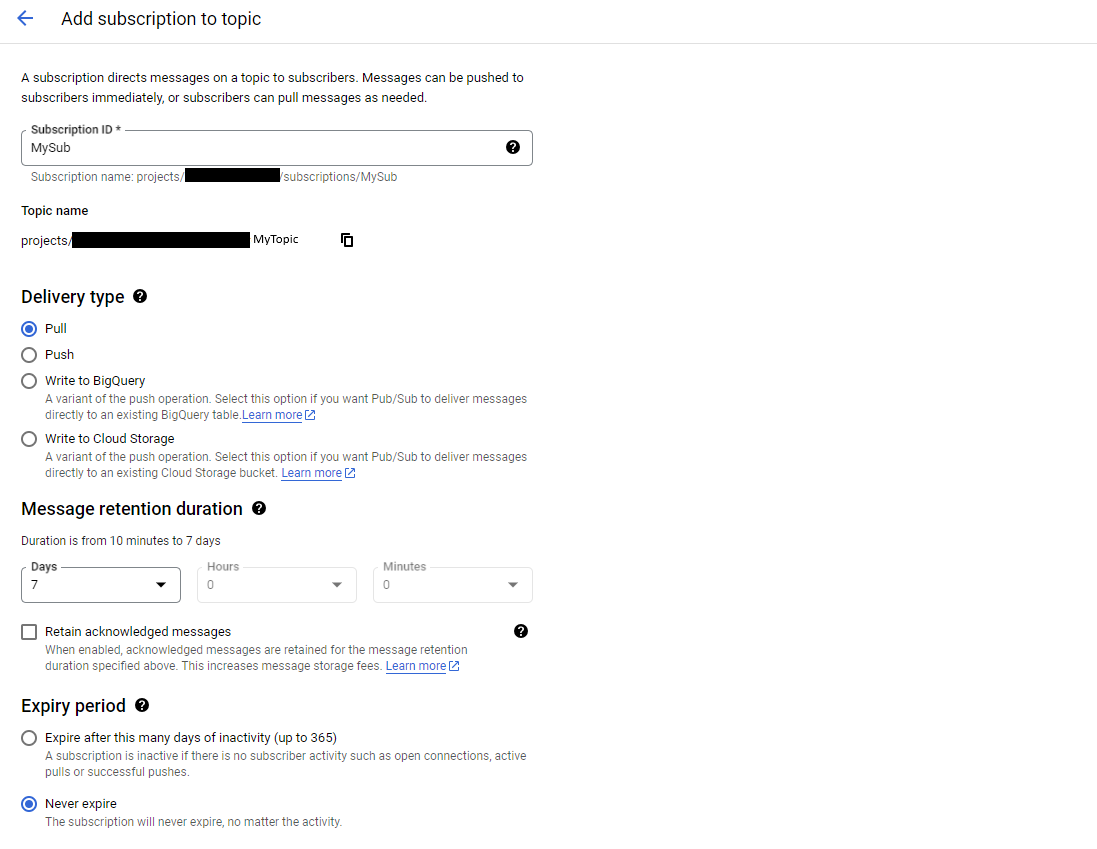
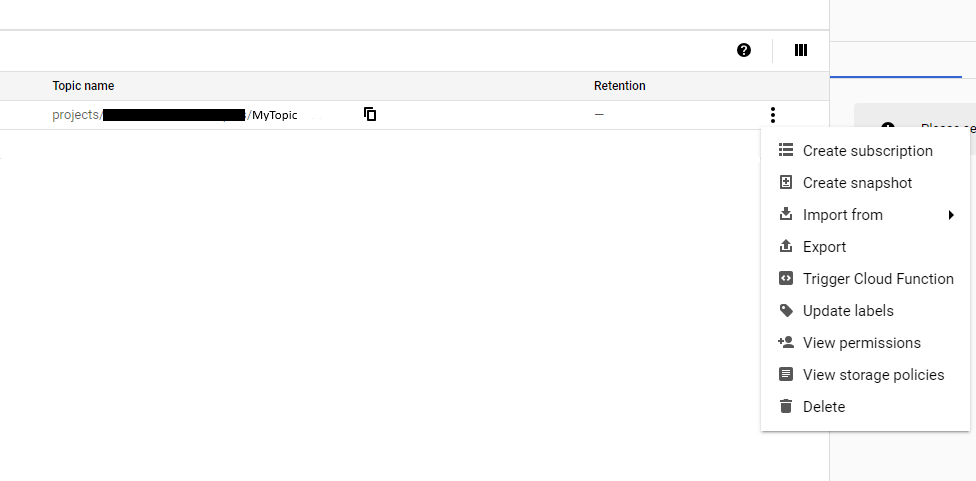 #### 5. Type a name for the subscription.
> Leave the Delivery type as Pull, leave the Expiry period as Never expire and click create button
#### 5. Type a name for the subscription.
> Leave the Delivery type as Pull, leave the Expiry period as Never expire and click create button
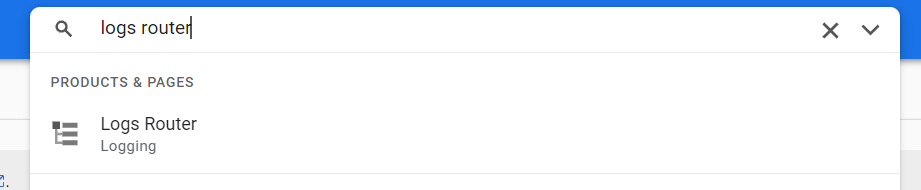
 #### 6. Go to the Logs router section; you can access this section quickly using the search box
 #### 7. Click on the "Create SINK" button
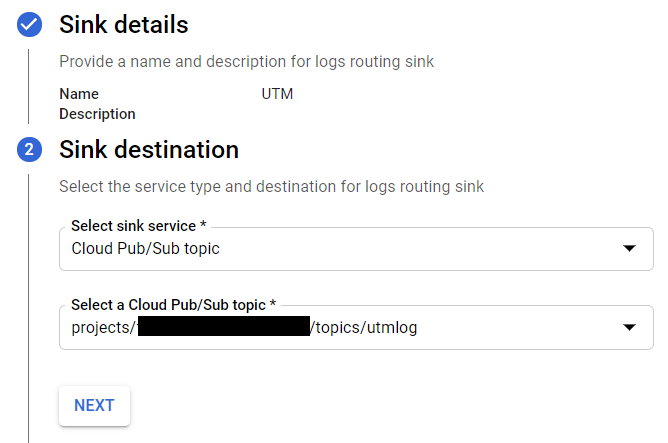
 #### 8. After providing a name and description for logs routing sink, in the Sink destination step, select the Cloud Pub/Sub topic service and then choose the topic that you created in step 3. Then click on Next
 #### 9. Build inclusion and exclusion filter expression that matches the log entries you want to include or exclude in steps 3 and 4 of creating sink wizard
> If you don't set a filter, all logs from your Cloud project are routed to the destination. Click Next, and Create sink
#### 10. Go to service accounts page,select the project where you create topics and sink in the previous steps, and click CREATE SERVICE ACCOUNT
> UTMStack will be using this service account to retrieve logs from the Google PubSub
#### 9. Build inclusion and exclusion filter expression that matches the log entries you want to include or exclude in steps 3 and 4 of creating sink wizard
> If you don't set a filter, all logs from your Cloud project are routed to the destination. Click Next, and Create sink
#### 10. Go to service accounts page,select the project where you create topics and sink in the previous steps, and click CREATE SERVICE ACCOUNT
> UTMStack will be using this service account to retrieve logs from the Google PubSub
 #### 11. Fill in the data asked in the form and give your service account Pub/Sub Editor permissions for the service account.
#### 12. Select the created service account then go to the Keys tab and create new key.
#### 11. Fill in the data asked in the form and give your service account Pub/Sub Editor permissions for the service account.
#### 12. Select the created service account then go to the Keys tab and create new key.
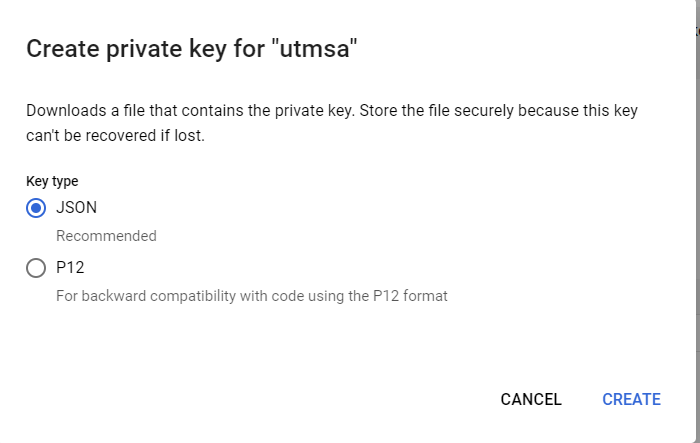
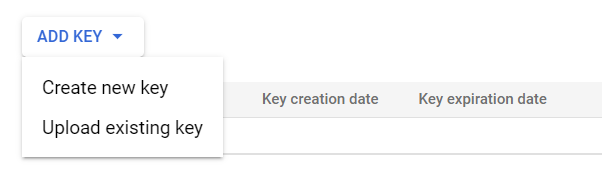 #### 13. Download key in JSON format
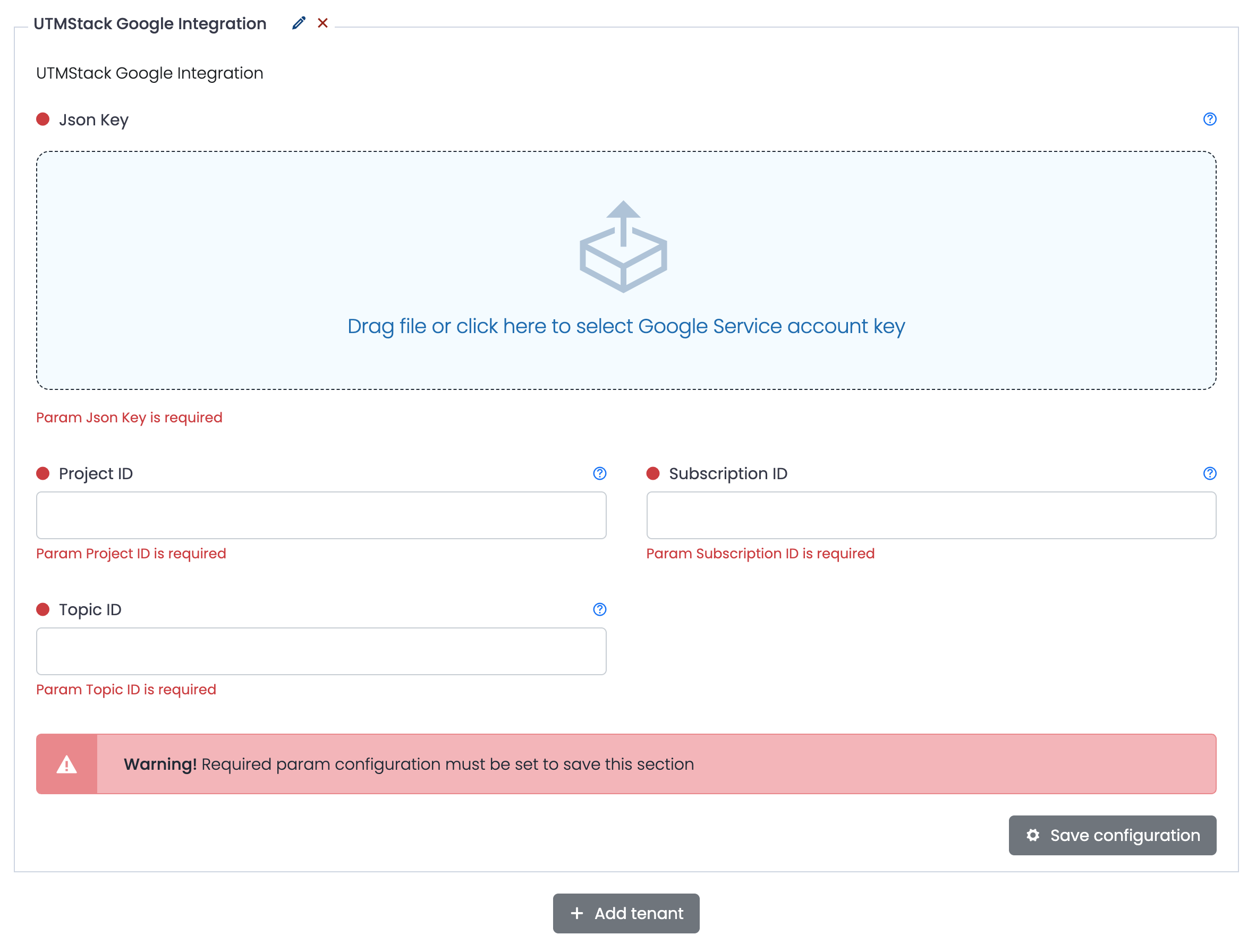
 #### 14. Enter Google Pub/Sub info
 #### 15. Click on the button shown below, to activate the UTMStack features related to this integration