> ## Documentation Index
> Fetch the complete documentation index at: https://docs.insecureweb.com/llms.txt
> Use this file to discover all available pages before exploring further.
# Integration guide for Azure
> At its core, Azure is a public cloud computing platform—with solutions including Infrastructure as a Service (IaaS), Platform as a Service (PaaS), and Software as a Service (SaaS) that can be used for services such as analytics, virtual computing, storage, networking, and much more.
## Installing Azure
### 1. Create "Event Hub"
Using the official Azure documentation [Quickstart: Create an event hub using Azure portal](https://learn.microsoft.com/en-us/azure/event-hubs/event-hubs-create)
### 2. Create a new "Shared access policy" to allow access to the Event Hub created, make sure you select the "Listen" permission.
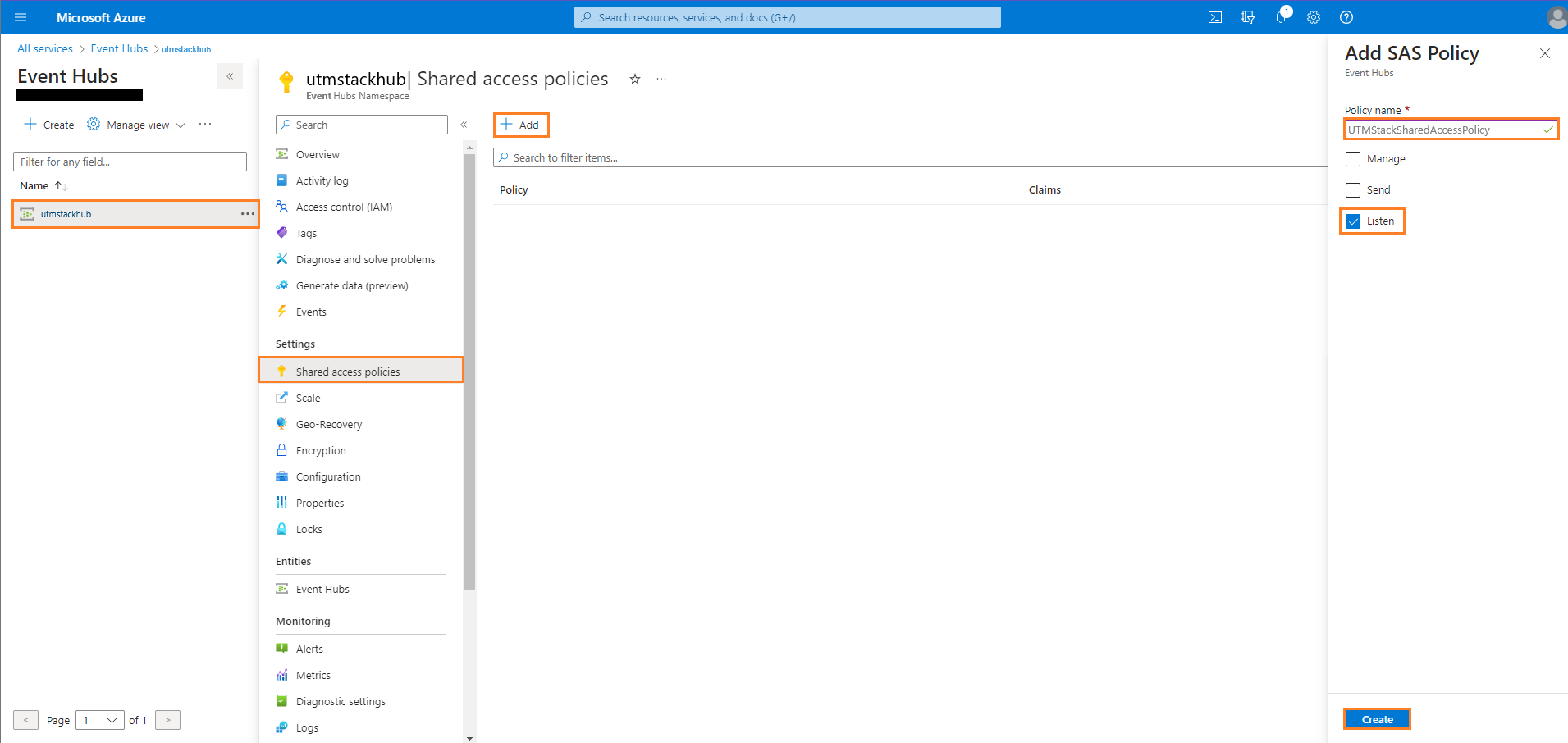 ### 3. Get the Event Hub Shared Access policies - Connection string–primary key from "Shared access policy" created previously. It will be used to configure your tenant.
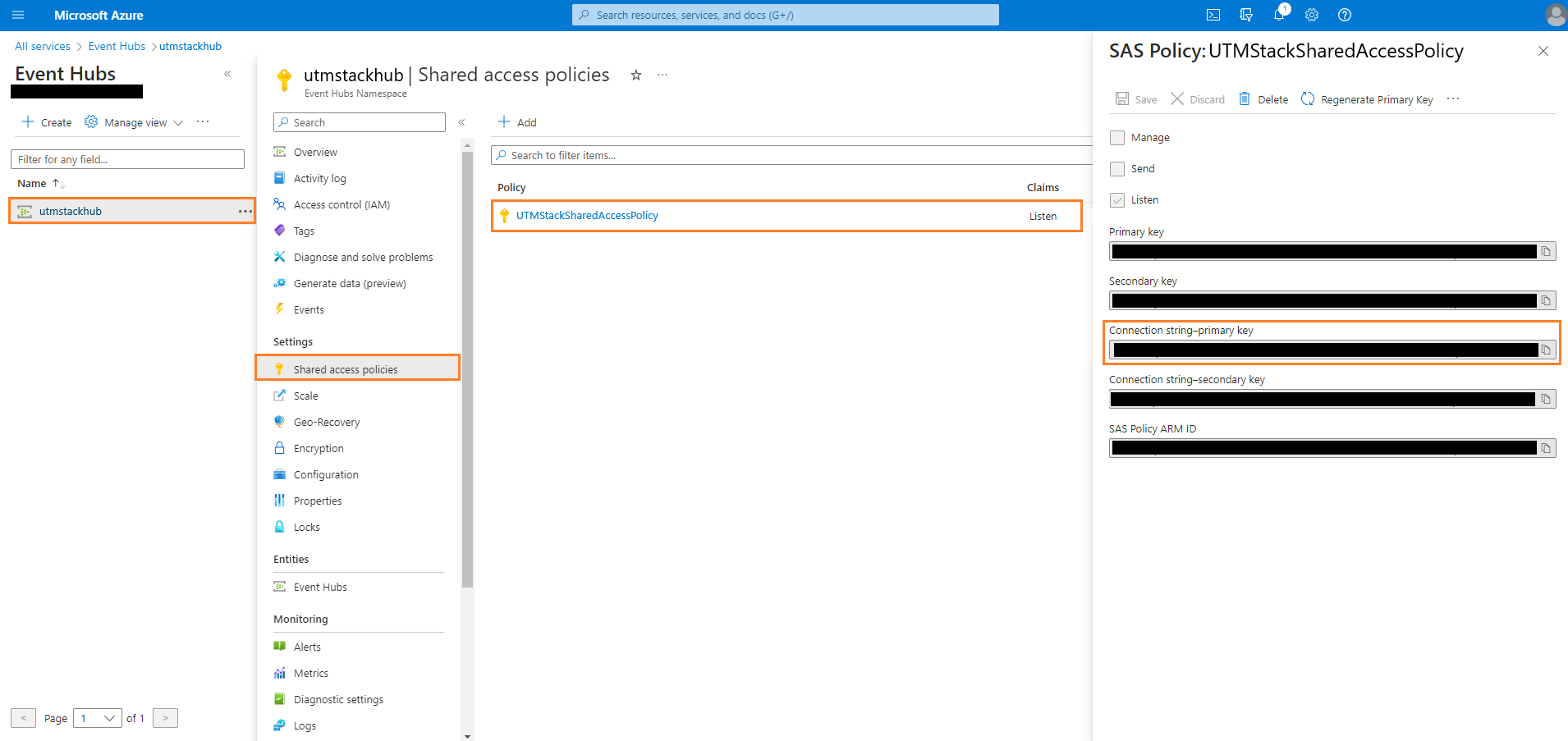 > Sample Connection string–primary key:
 ### 4. Get the Consumer Group Name
> In: All services-> Event Hubs -> Your\_Event\_Hub\_Namespace -> Event Hubs -> Your\_Event\_Hub\_Instance -> Consumer groups. It will be used to configure your tenant.
### 4. Get the Consumer Group Name
> In: All services-> Event Hubs -> Your\_Event\_Hub\_Namespace -> Event Hubs -> Your\_Event\_Hub\_Instance -> Consumer groups. It will be used to configure your tenant.
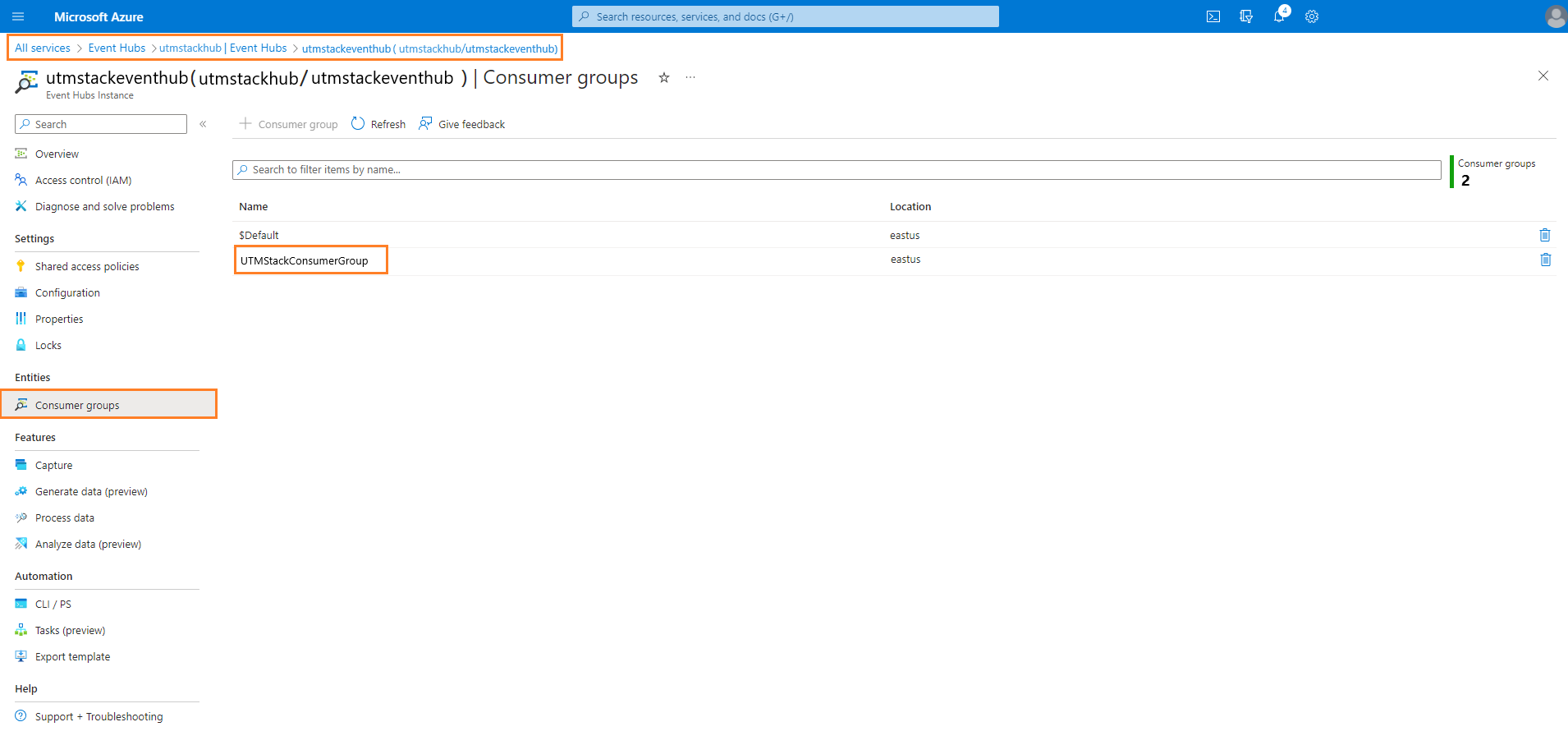 Create a new consumer group specifically for Logstash. Do not use the \$default or any other consumer group that might already be in use. Reusing consumer groups among non-related consumers can cause unexpected behavior and possibly lost events. All Logstash instances should use the same consumer group so that they can work together for processing events.
### 5. Create a "Storage Account"
Using the official Azure documentation [Quickstart: Create a storage account](https://learn.microsoft.com/en-us/azure/storage/common/storage-account-create?tabs=azure-portal)
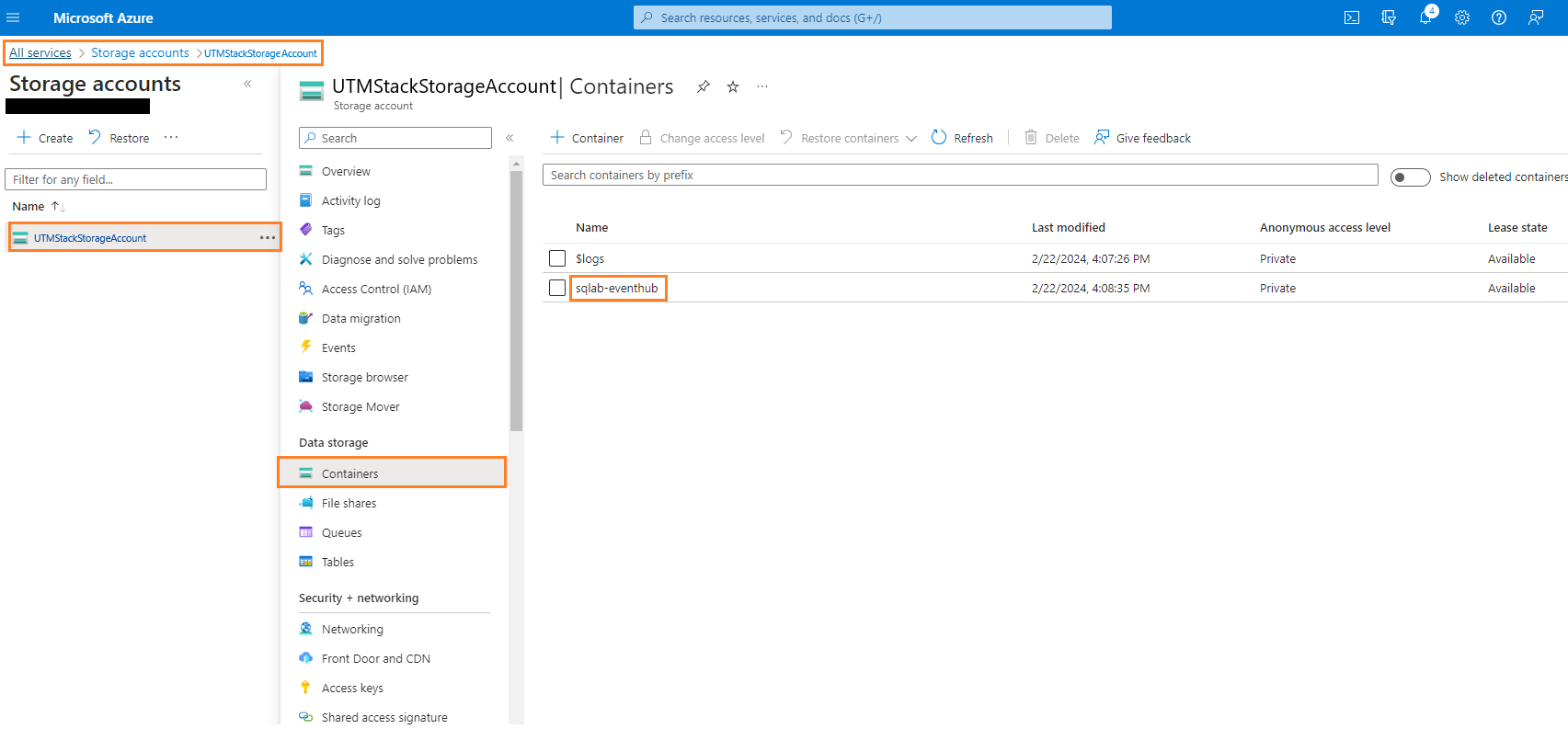
### 6. Get the "Storage Container Name"
> In: All services -> Storage accounts -> Your\_Storage\_Account -> Containers. It will be used to configure your tenant.
Create a new consumer group specifically for Logstash. Do not use the \$default or any other consumer group that might already be in use. Reusing consumer groups among non-related consumers can cause unexpected behavior and possibly lost events. All Logstash instances should use the same consumer group so that they can work together for processing events.
### 5. Create a "Storage Account"
Using the official Azure documentation [Quickstart: Create a storage account](https://learn.microsoft.com/en-us/azure/storage/common/storage-account-create?tabs=azure-portal)
### 6. Get the "Storage Container Name"
> In: All services -> Storage accounts -> Your\_Storage\_Account -> Containers. It will be used to configure your tenant.
 ### 7. Get the Storage Account Connection string with key to access Azure "Storage Account".
> Find the connection string here: All services -> Storage accounts -> Your\_Storage\_Account -> Access keys. It will be used to configure your tenant.
### 7. Get the Storage Account Connection string with key to access Azure "Storage Account".
> Find the connection string here: All services -> Storage accounts -> Your\_Storage\_Account -> Access keys. It will be used to configure your tenant.
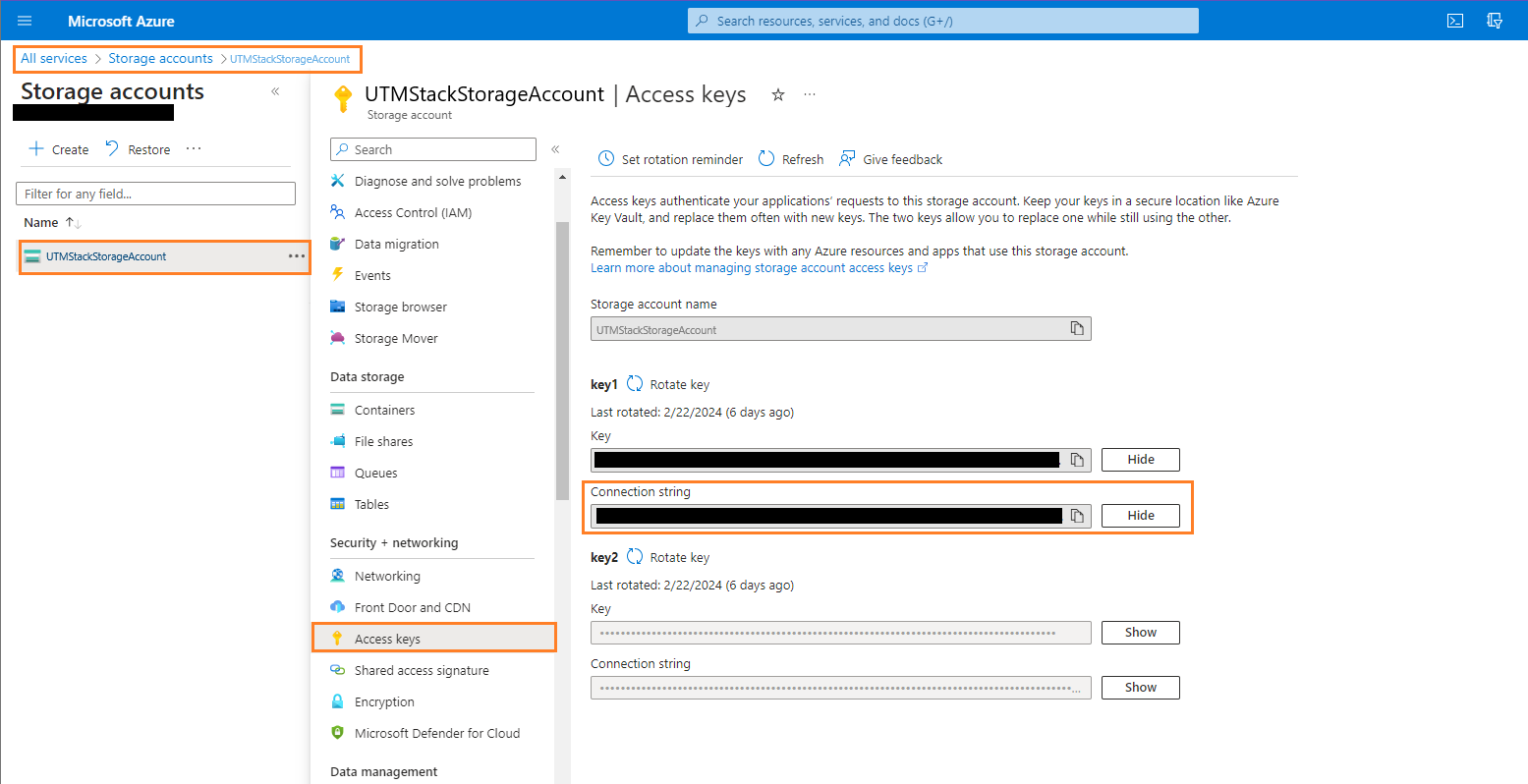 > Sample connection string:
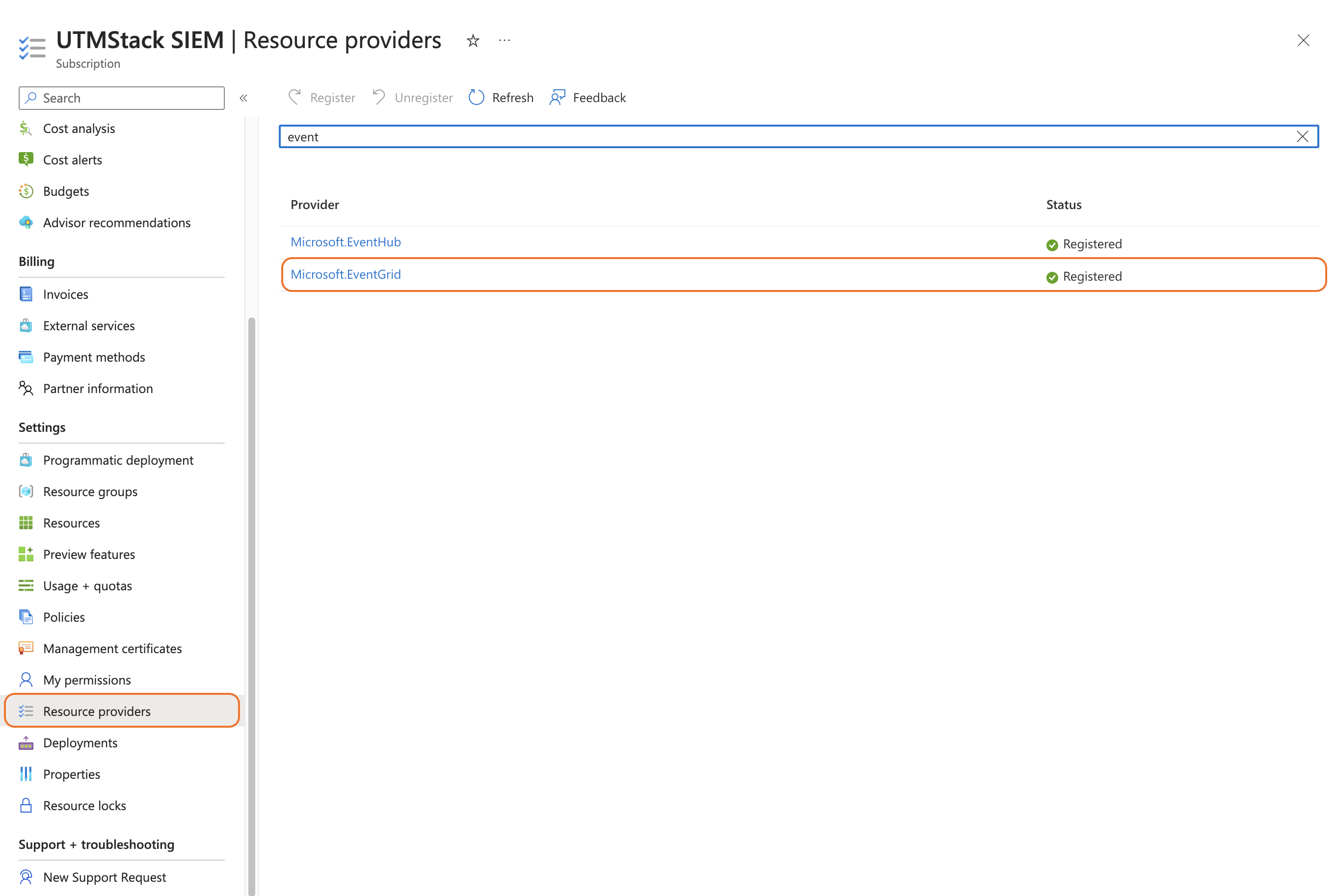
 ### 8.Configure your Azure Subscription to send log to the Event Hub
> Go to Subscription and click on "Resource providers". Search for "Event Grid", and make sure is registered in the "Resources providers".
### 8.Configure your Azure Subscription to send log to the Event Hub
> Go to Subscription and click on "Resource providers". Search for "Event Grid", and make sure is registered in the "Resources providers".
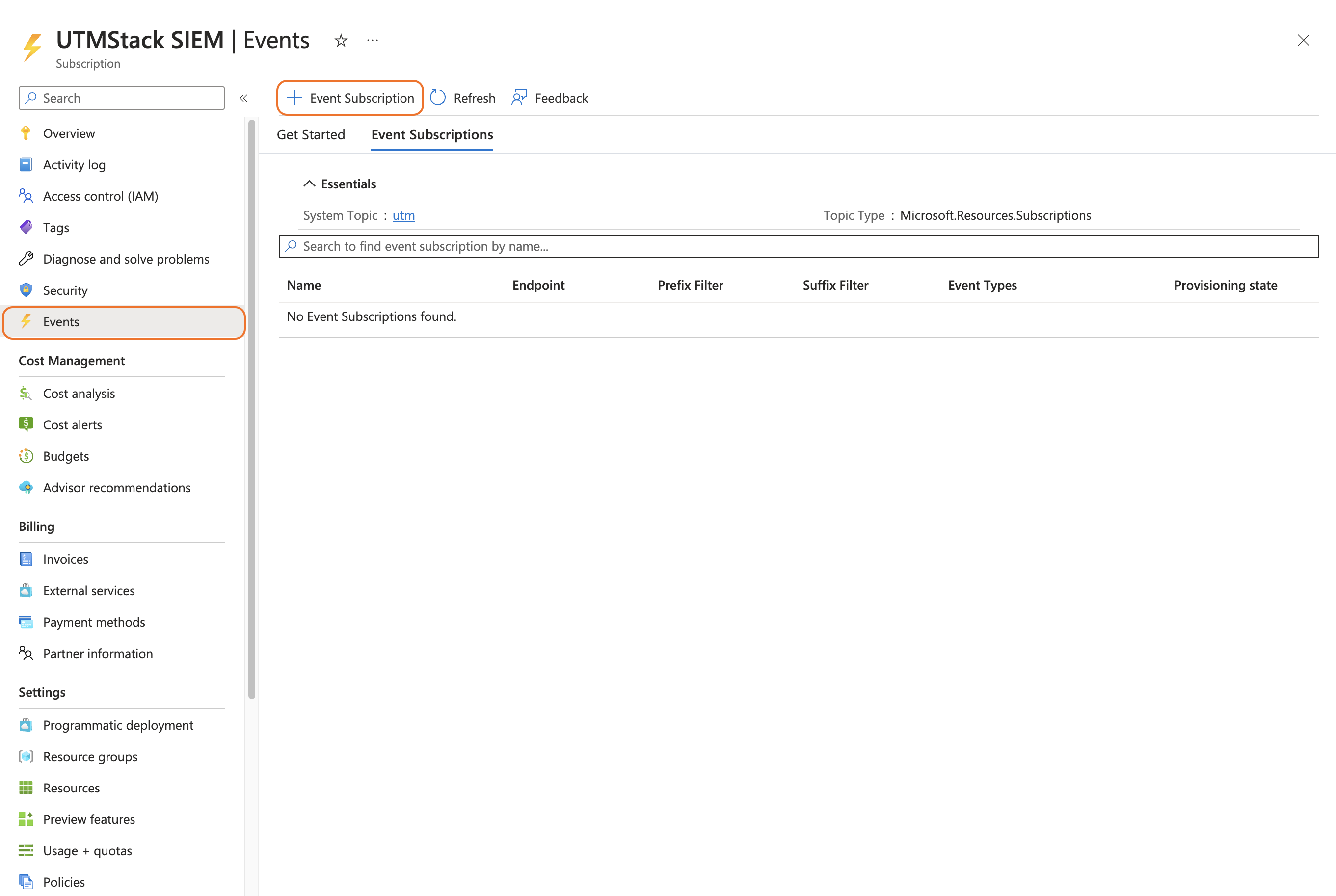
 ### 9. Create a new Event by clicking in the Events -> Event Subscription
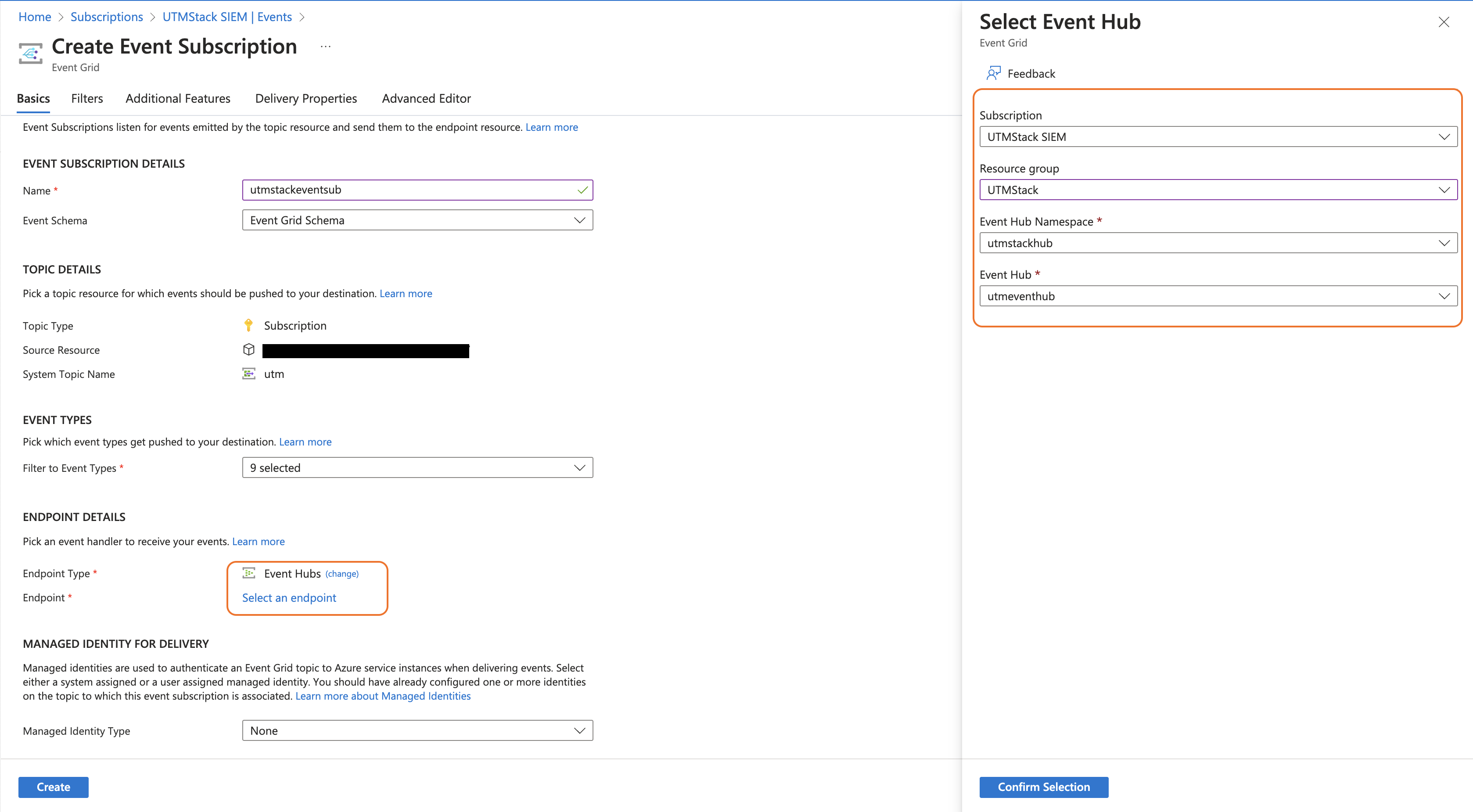
 ### 10.Configure the "Event Subscription" to send logs to the Event Hub created previously.
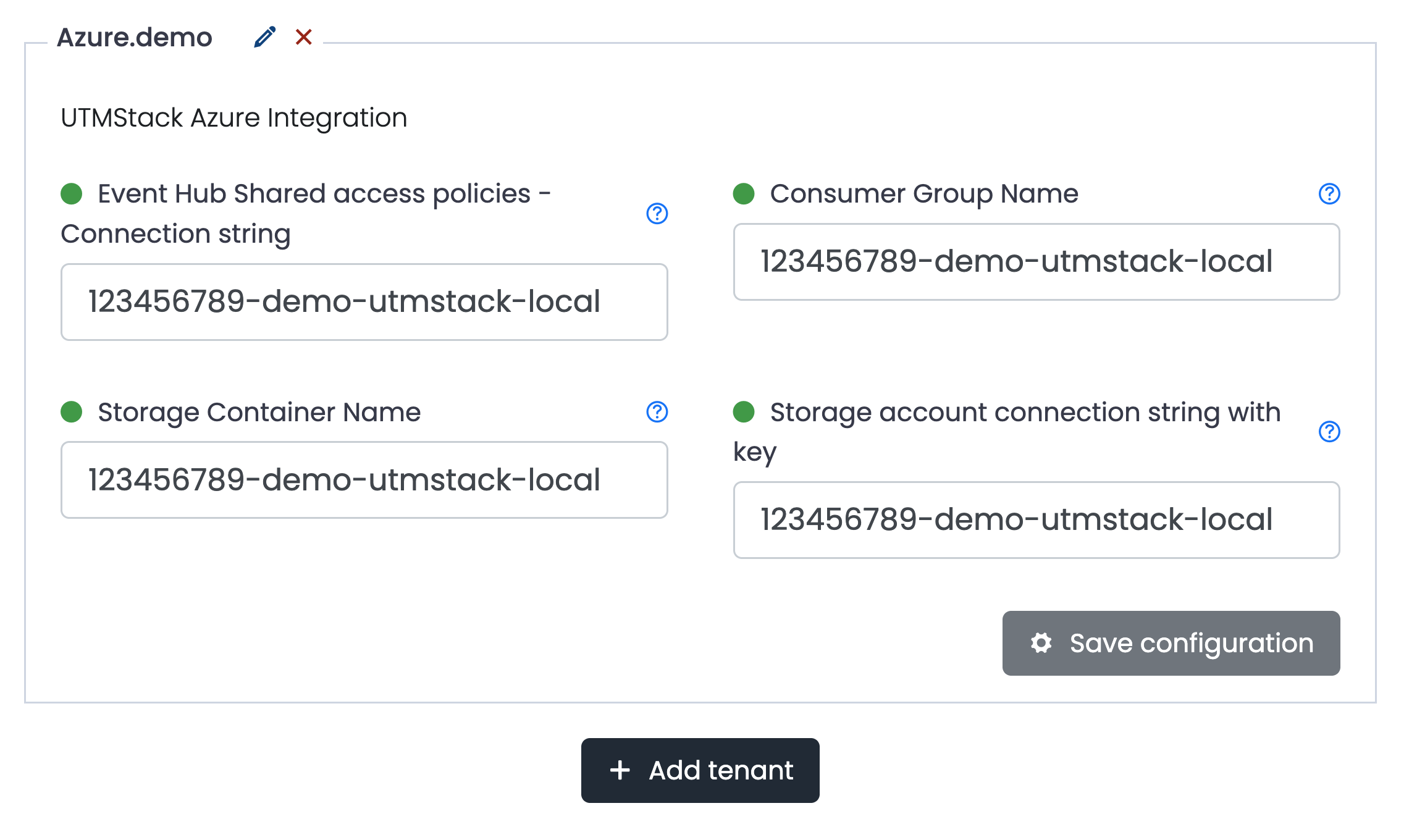
 ### 11. Use the data collected in the previous steps to fill the form as documented below. You can add more than one Event Hub configuration by clicking on the Add tenant button.
>
* The input field Event Hub Shared access policies - Connection string refers to Azure's Event Hub Shared Access Policies - Connection string-primary key: Value obtained in step 3
- Consumer Group Name: Value obtained in step 4
* Storage Container Name: Value obtained in step 6
* Storage Account Connection string with key: Value obtained in step 7
### 11. Use the data collected in the previous steps to fill the form as documented below. You can add more than one Event Hub configuration by clicking on the Add tenant button.
>
* The input field Event Hub Shared access policies - Connection string refers to Azure's Event Hub Shared Access Policies - Connection string-primary key: Value obtained in step 3
- Consumer Group Name: Value obtained in step 4
* Storage Container Name: Value obtained in step 6
* Storage Account Connection string with key: Value obtained in step 7
 ### 12. Click on the button shown below, to activate the UTMStack features related to this integration