> ## Documentation Index
> Fetch the complete documentation index at: https://docs.insecureweb.com/llms.txt
> Use this file to discover all available pages before exploring further.
# Integration guide for Office365
> Microsoft 365, formerly Office 365, is a line of subscription services offered by Microsoft which adds to and includes the Microsoft Office product line
## To connect UTMStack with Office365:
#### 1. Open the Azure
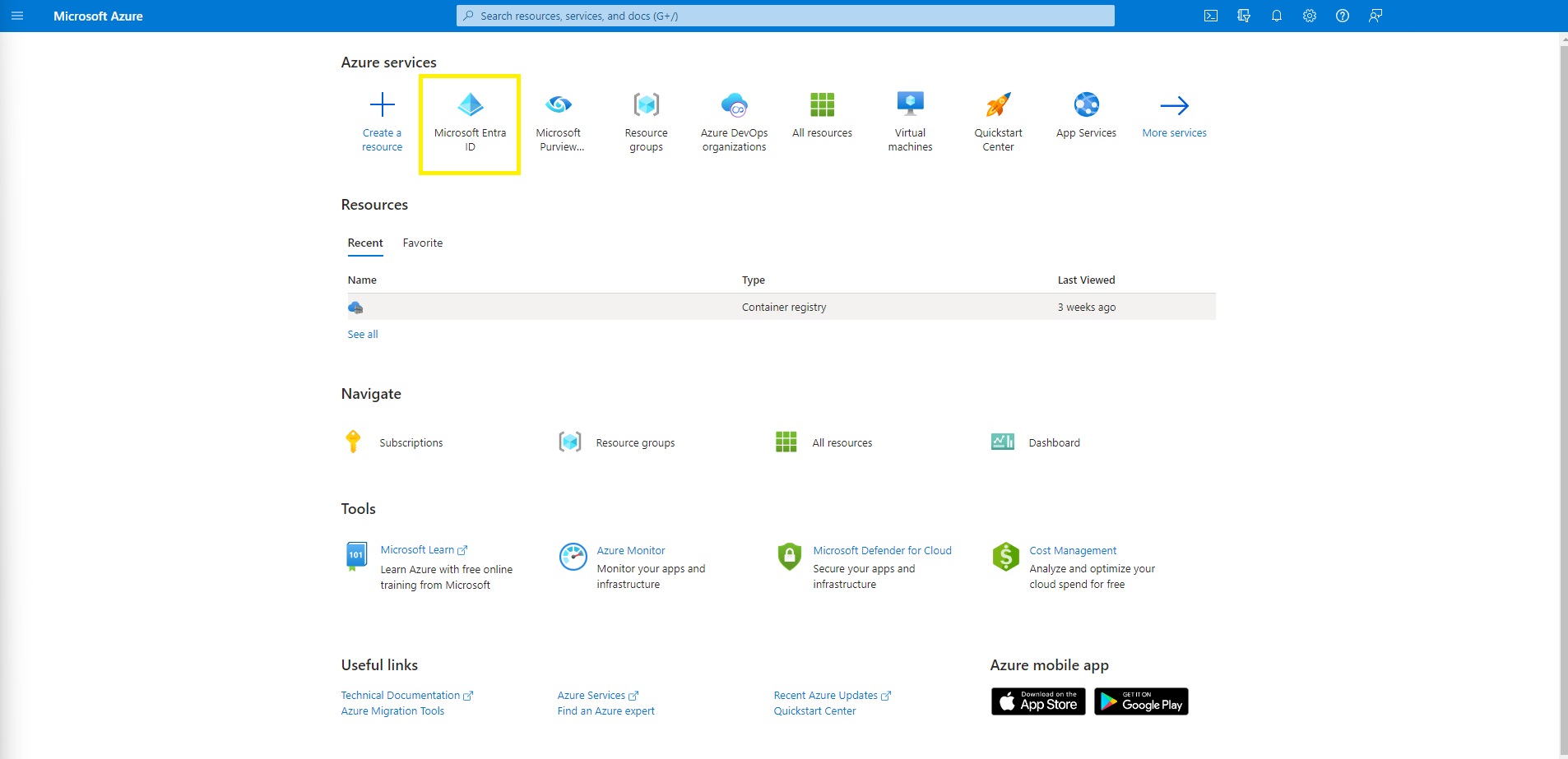
[Azure’s Portal](https://portal.azure.com/). Click on Microsoft Entra ID.
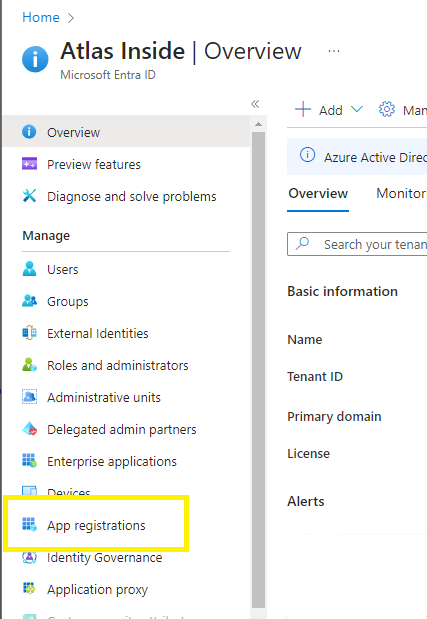
 #### 2. Go to App registrations
 #### 3. Add a new app
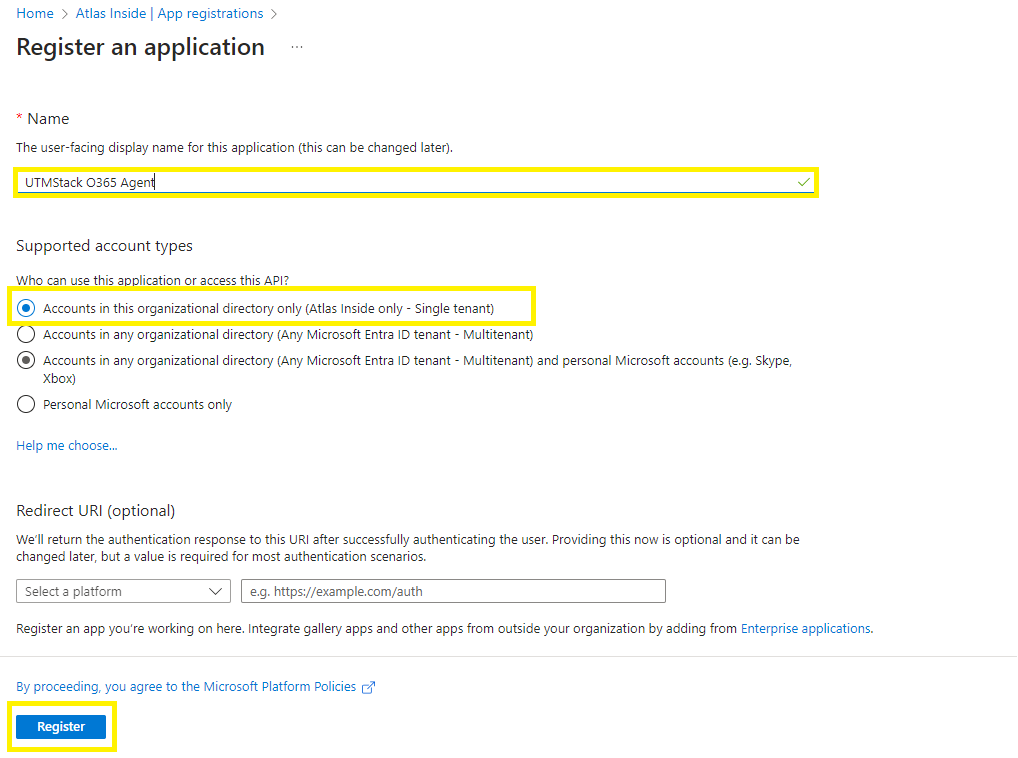
Clicking the **"New registration"** button and fill-up the form, with the name **"UTMStack O365 Agent", and select the option "Accounts in this organizational directory only to (Single-tenant)"** and click on register.
#### 3. Add a new app
Clicking the **"New registration"** button and fill-up the form, with the name **"UTMStack O365 Agent", and select the option "Accounts in this organizational directory only to (Single-tenant)"** and click on register.
 #### 4.In the newly created App registration
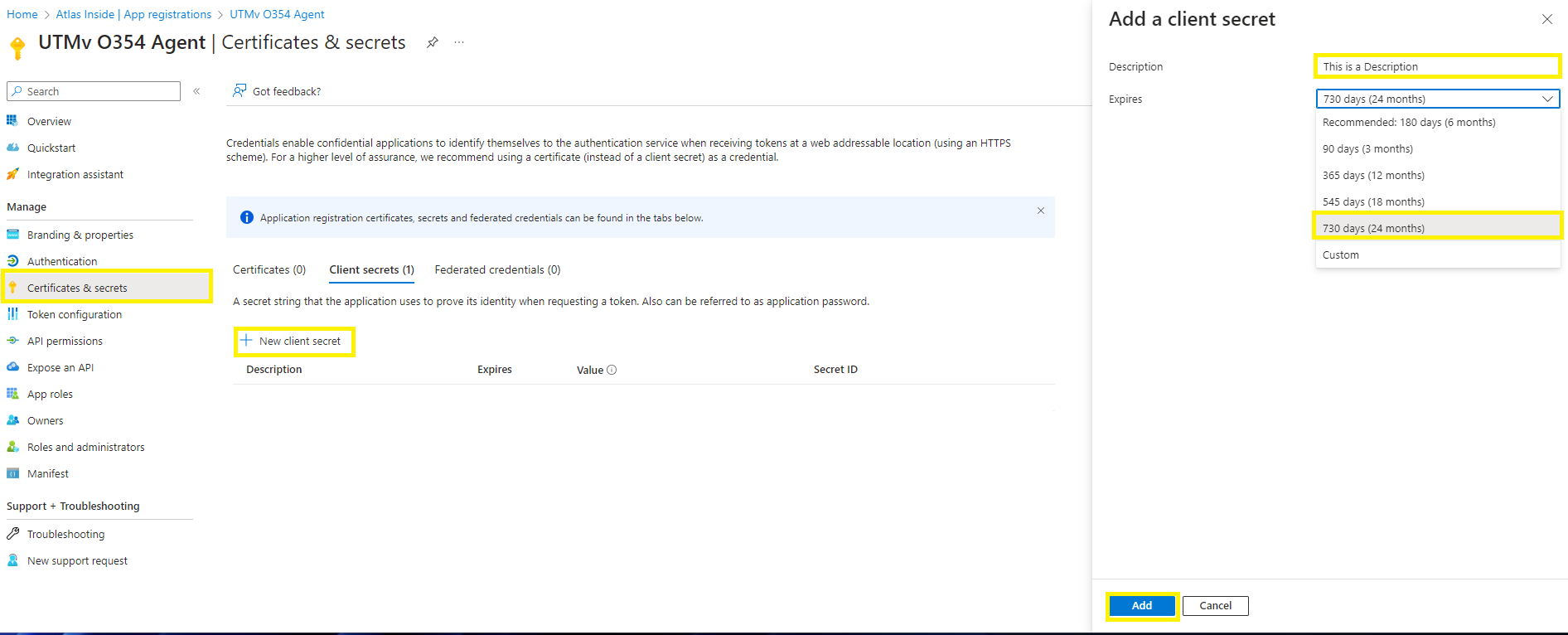
Go to Certificates & Secrets, and create a new one by clicking on "New client secret". Add a description. Set it to expires in 730 days (24 months) and click on Add. Copy the value in a safe place.
#### 4.In the newly created App registration
Go to Certificates & Secrets, and create a new one by clicking on "New client secret". Add a description. Set it to expires in 730 days (24 months) and click on Add. Copy the value in a safe place.
 #### 5. From the same App registration menu, look for "API Permissions" and click on "Add Permissions" and look for "Office 365 Management API".
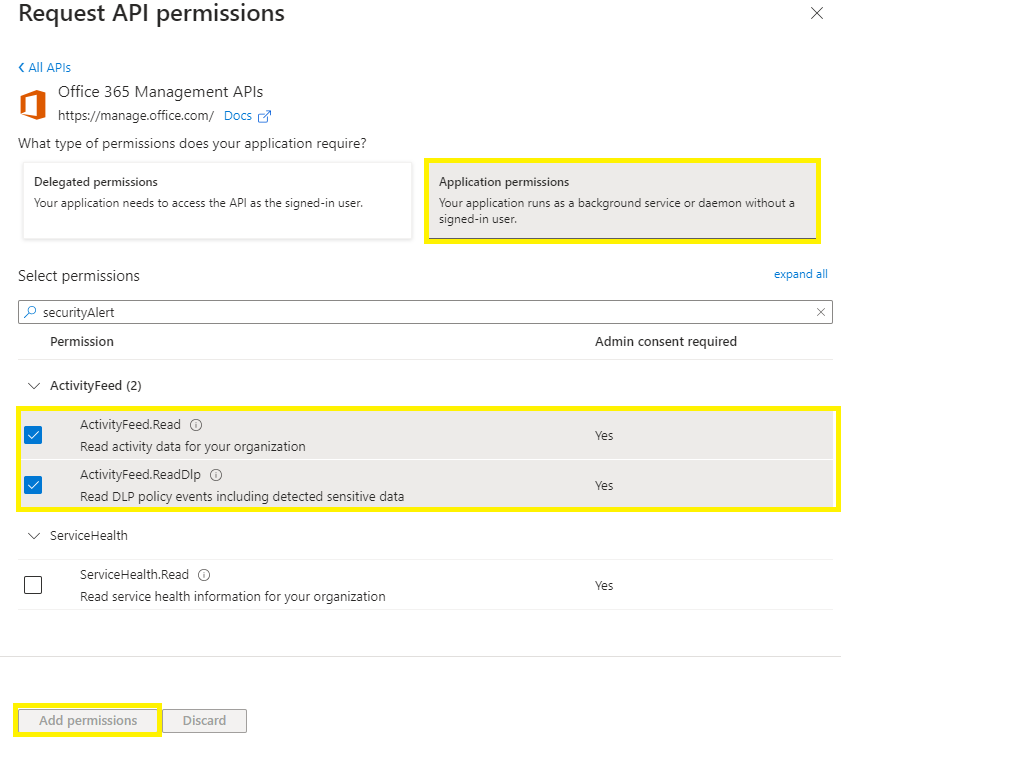
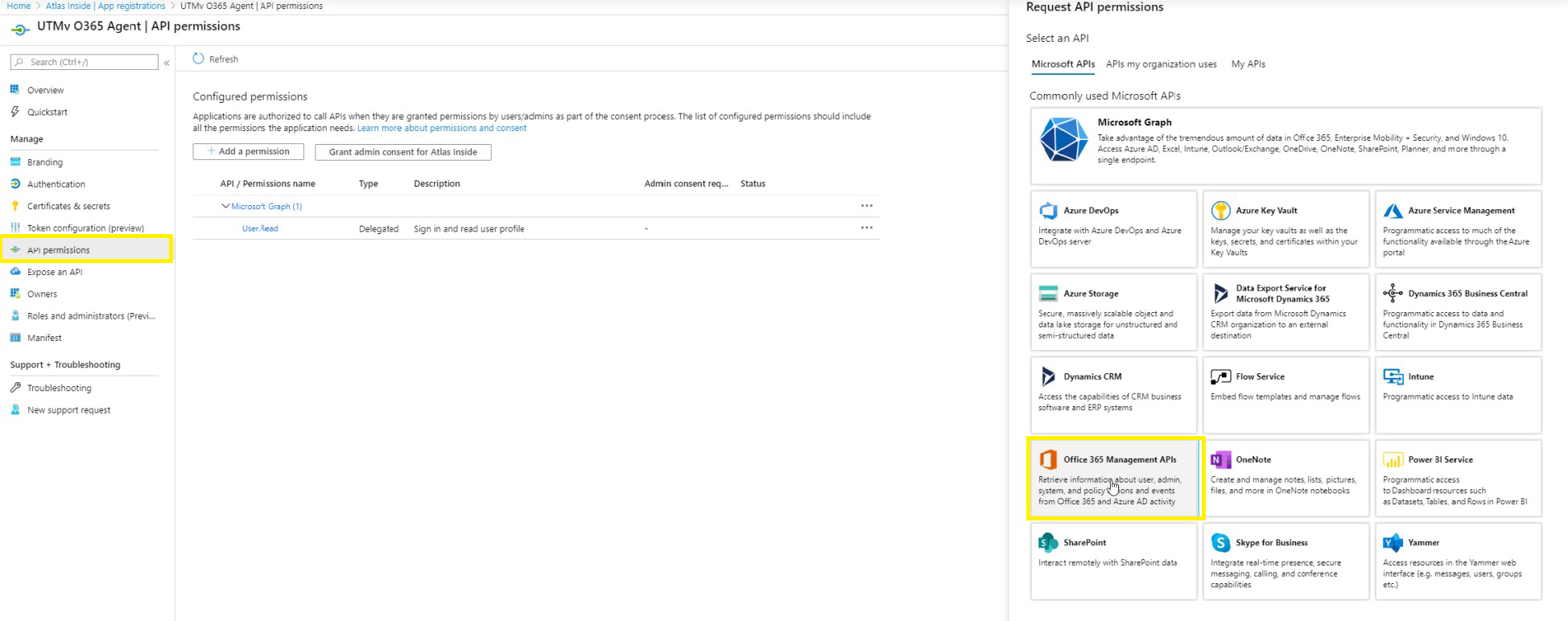 #### 6. Select "Application Permissions" and, add the ActivityFeed.Read and ActivityFeed.ReadDlp permissions. Then click on "Grant admin consent for X" and confirm.
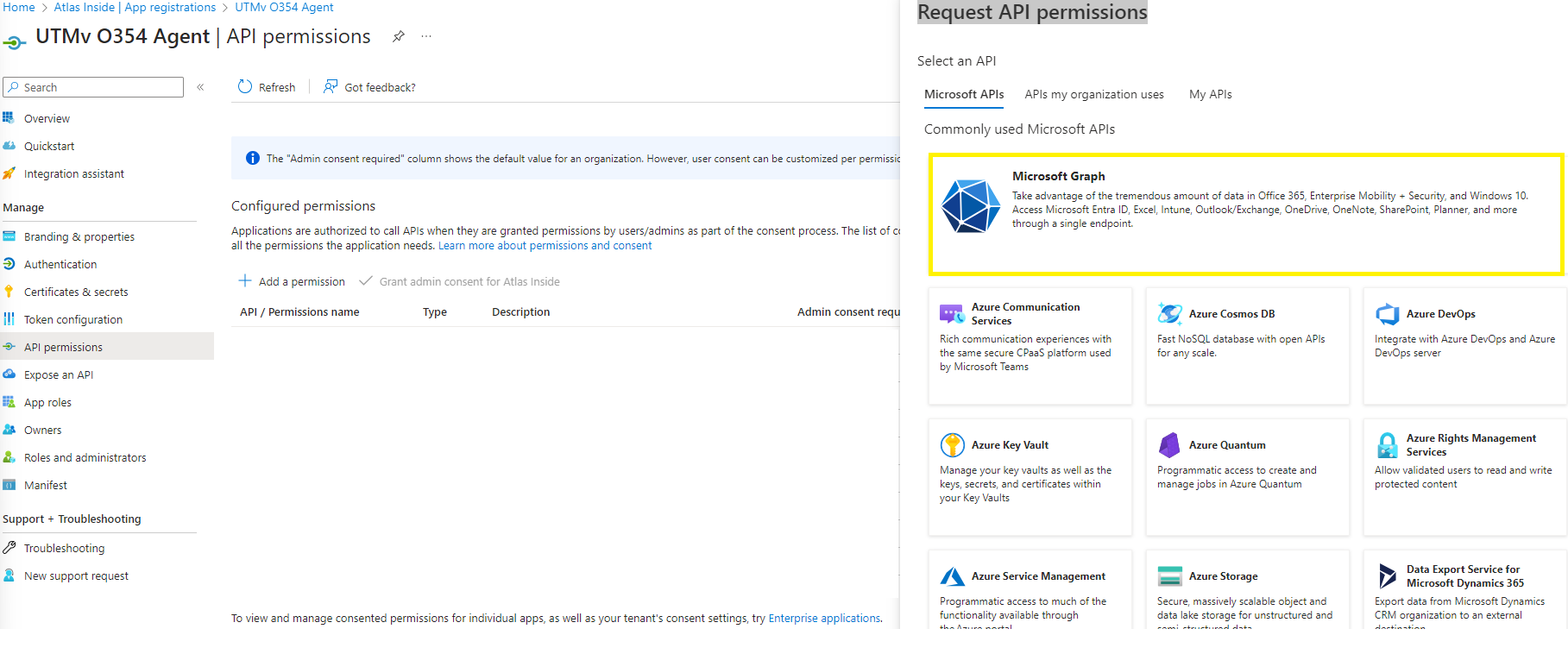
 #### 7. From the same "Request API Permissions" click on "Microsoft Graph"
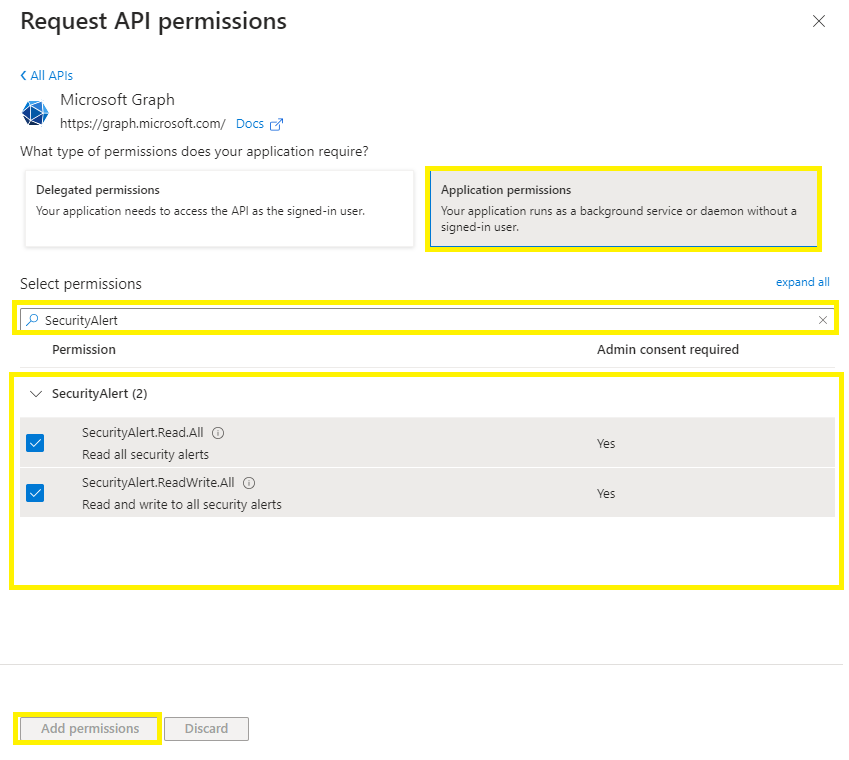
 #### 8. Select "Delegated Permissions" and, add the SecurityAlert.Read.All and SecurityAlert.ReadWrite.All permissions. Then click on "Grant admin consent for X" and confirm.
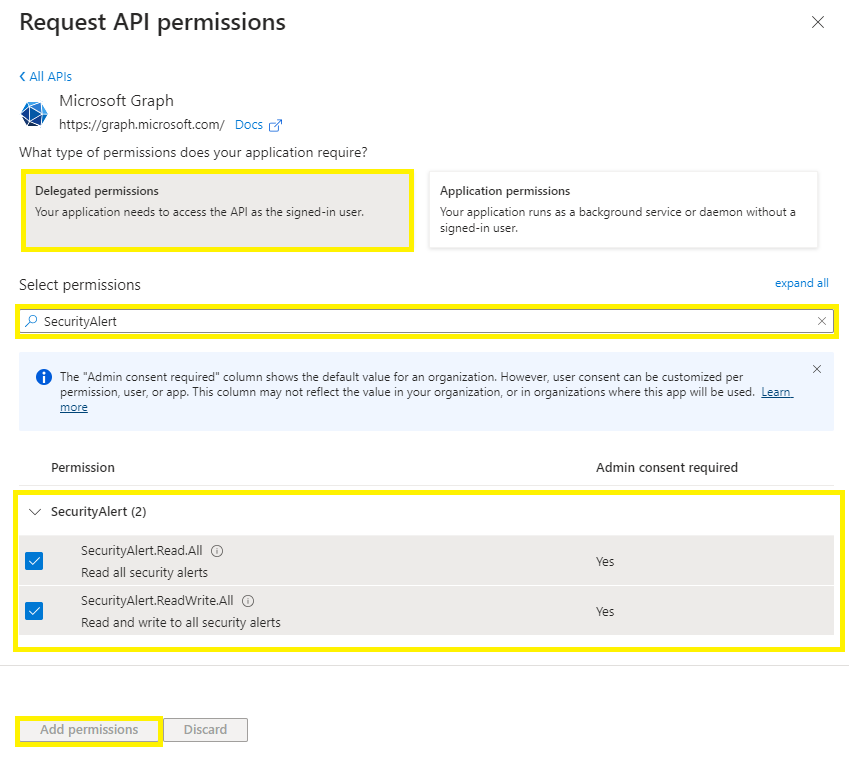 #### 9. Select "Application Permissions" and, add the SecurityAlert.Read.All and SecurityAlert.ReadWrite.All permissions. Then click on "Grant admin consent for X" and confirm.
 #### 10. Go to [https://compliance.microsoft.com](https://compliance.microsoft.com) and sign in.
#### 11. In the left navigation pane of the compliance portal, select Audit.
If auditing isn't turned on for your organization, a banner is displayed prompting you start recording user and admin activity.
#### 10. Go to [https://compliance.microsoft.com](https://compliance.microsoft.com) and sign in.
#### 11. In the left navigation pane of the compliance portal, select Audit.
If auditing isn't turned on for your organization, a banner is displayed prompting you start recording user and admin activity.
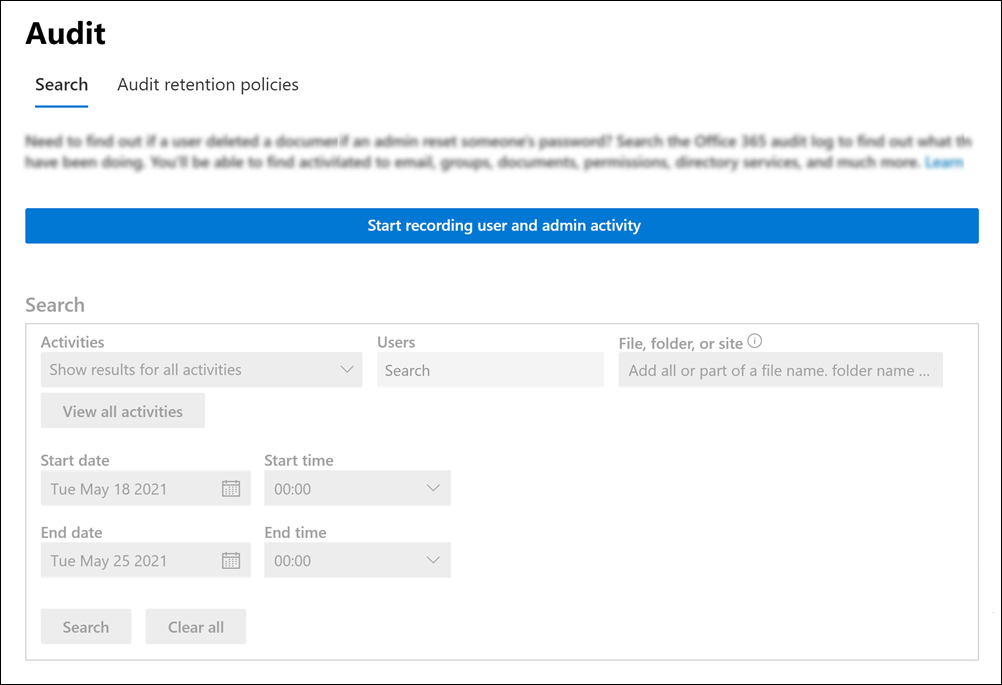 #### 12. Select the Start recording user and admin activity banner. It may take up to 60 minutes for the change to take effect.
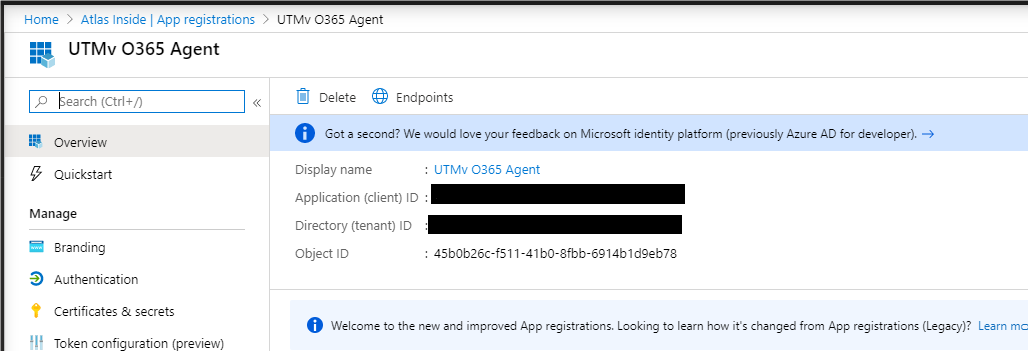
#### 13. Return to Azure Active Directory and go to the Registered Apps (step number 3) and make a note the info that appears in the Overview section (client ID, tenant ID) and the secret.
#### 12. Select the Start recording user and admin activity banner. It may take up to 60 minutes for the change to take effect.
#### 13. Return to Azure Active Directory and go to the Registered Apps (step number 3) and make a note the info that appears in the Overview section (client ID, tenant ID) and the secret.
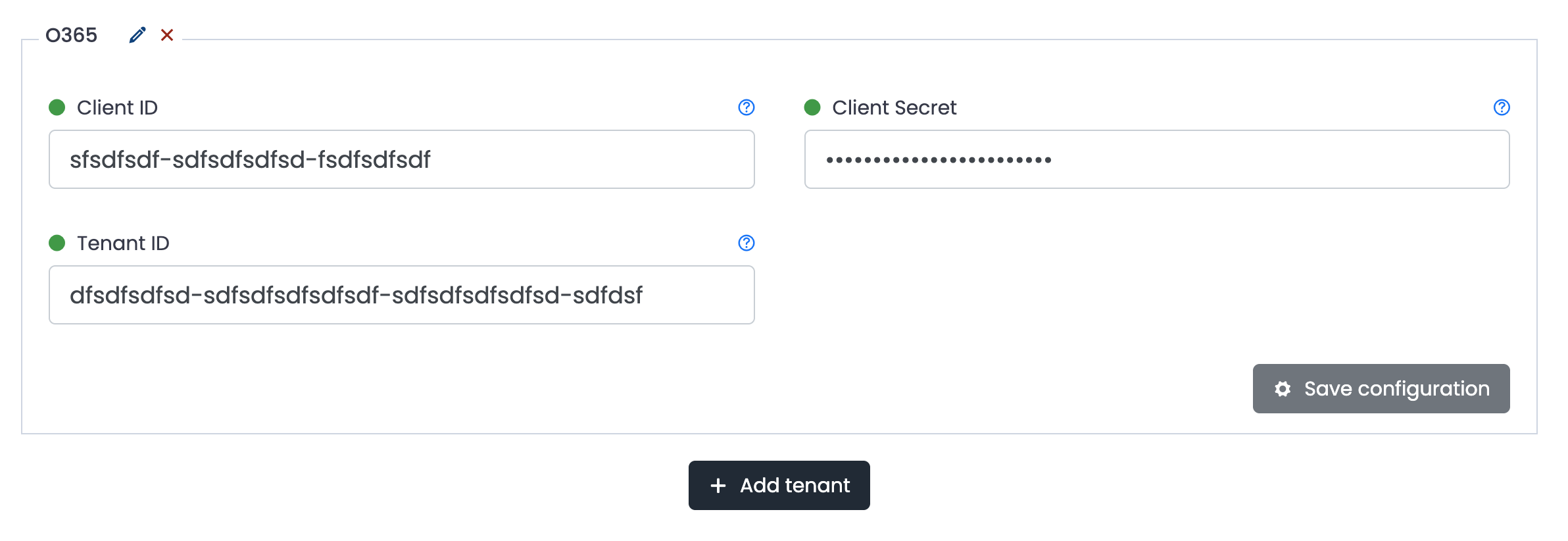
 #### 14. Insert information in the following inputs.You can add more than one o365 configuration by clicking on Add tenant button.
 #### 15. Click on the button shown below, to activate the UTMStack features related to this integration