Overview
This one-stop hub offers critical insights into user activity, alerts, vulnerabilities, and network traffic within your organization. Equipped with a variety of visualization types, UTMStack streamlines security monitoring and analysis for a more secure network environment.Getting Started
- After logging into UTMStack, navigate to the Dashboard tab.

- Click on New Dashboard

Creating a New Dashboard
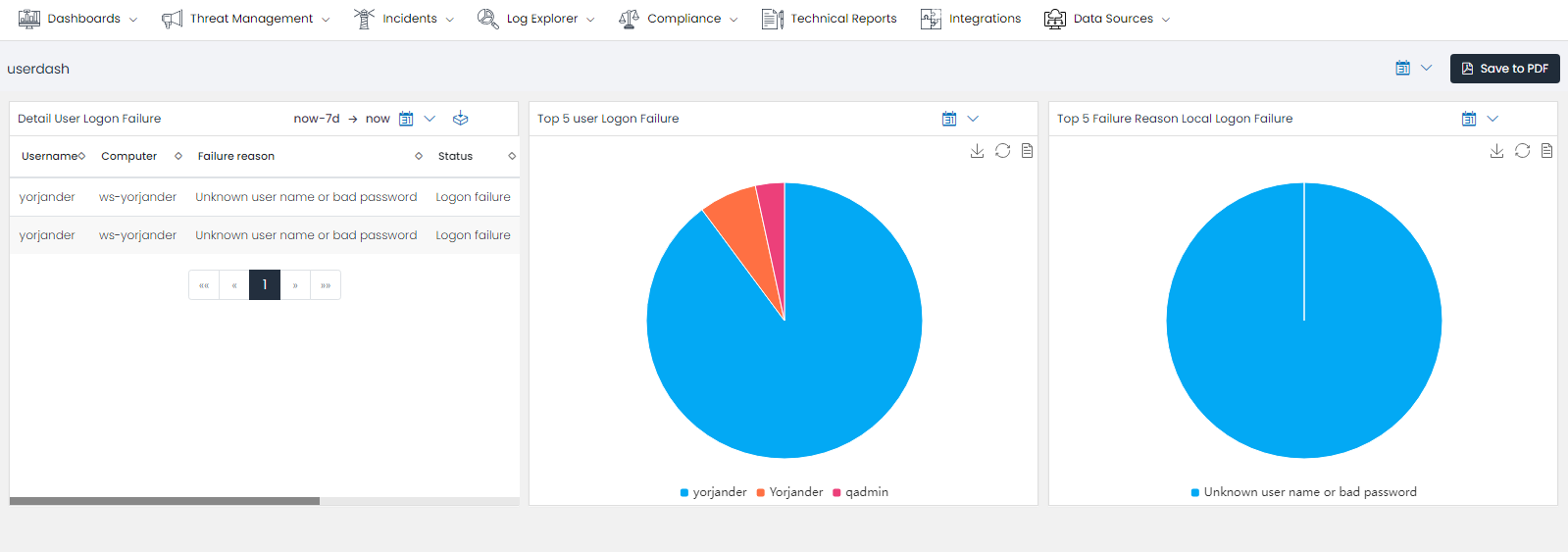
Upon clicking the New Dashboard option, a pop-up window appears on the right side of your screen. This window displays a list of pre-created visualizations, tailored based on the most common and useful visualizations requested by our users. You can now select your preferred visualization for the dashboard you wish to create by checking the respective checkboxes. For example, we are going to create a dashboard for manage the logon failure, using the Top 5 User Logon Failures, Top 5 Failure Reason Local Logon Failures, and Detail User Logon Failure visualizations.

Upon closing the window, you’ll be directed to the Dashboard view editor, featuring the selected visualizations.
 You can now add other visualizations, modify the size, position, and date range of your selected visualizations, or customize these visualizations to meet your specific requirements.
When you’ve finished configuring your dashboard, press the Save Dashboard button. You will need to provide a name for your dashboard and may also add a description (optional).
In the Dashboard List, you can use the search bar to quickly locate the dashboard you’ve just created.
You can now add other visualizations, modify the size, position, and date range of your selected visualizations, or customize these visualizations to meet your specific requirements.
When you’ve finished configuring your dashboard, press the Save Dashboard button. You will need to provide a name for your dashboard and may also add a description (optional).
In the Dashboard List, you can use the search bar to quickly locate the dashboard you’ve just created.