VMWare allows businesses to run multiple application and operating system workloads on the one server. You can use the Syslog Service to redirect and store ESXi messages to UTMStack
This integration requires a UTMStack agent to work properly. Please, make sure you have installed it before you continue.
Log in to your VMware vSphere Client.
Select the host that manages your VMware inventory.
Click on the Configuration tab.
From the Software panel, click on Advanced Settings.
In the navigation menu, click on Syslog.
Configure values for the following parameters:
Parameter
ESX version
Description
Syslog.Local.DatastorePath
ESX or ESXi 3.5.x or 4.x
Type the directory path for the local syslog messages on your ESXi server. The default directory path is [] /scratch/log/messages.
Syslog.Remote.Hostname
ESX or ESXi 3.5.x or 4.x
Type the IP address of the UTMStack agent.
Syslog.Remote.Port
ESX or ESXi 3.5.x or 4.x
Type the port number the ESXi server uses to forward syslog data. Use the following ports: 7002 UDP, 7002 TCP
Syslog.global.logHost
ESXi v5.x or ESXi v6.x
Type the URL and port number that the ESXi server uses to forward syslog data. Examples: udp://<UTMStack Agent IP address>:7002 tcp://<UTMStack Agent IP address>:7002
Click OK to save the configuration
Log in to your VMware ESXi Server.
Configure Local and Remote Logging: open a ESXi Shell console session where the esxcli command is available, such as the vCLI or on the ESXi host directly.
Display the existing five configuration options on the host by running this command:
esxcli system syslog config get
Set new host configuration, specifying options to change, by running a command:
esxcli system syslog config set --loghost='tcp://your_utmstack_agent_ip:7002’
esxcli system syslog config set --logdir=/scratch/log --loghost=your_utmstack_agent_ip --logdir-unique=true
After making configuration changes, load the new configuration by running this command:
esxcli system syslog reload
Configuring ESXi Firewall Exception using the esxcli command/syslog port
esxcli network firewall ruleset set --ruleset-id=syslog --enabled=true
esxcli network firewall refresh
Run this command to test if the port is reachable from the ESXi host:
nc -z your_utmstack_agent_ip 7002
Enable log collector.
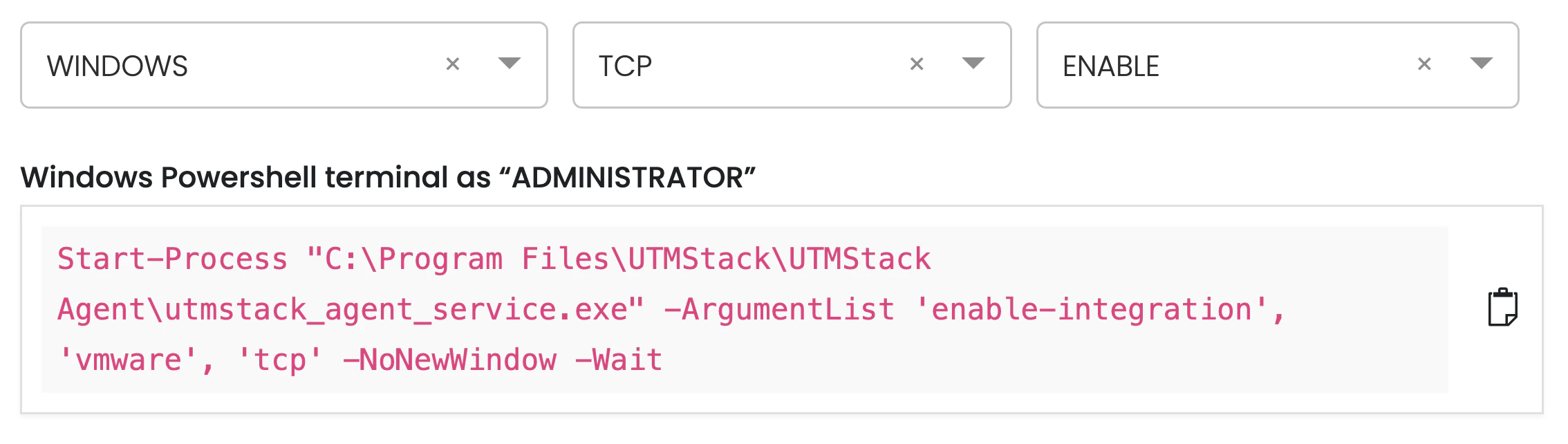
To enable the log collector where you have the UTMStack agent installed, follow the instructions below based on your operating system and preferred protocol.
Execute command according to the selected platform
Agent installation commands for operating systems must be copied directly from your UTMStack instance, under the Integrations section.
This ensures that all tokens, identifiers, and configuration parameters are accurate and specific to your environment.